Once everything is ready the action will start
Initially we will have a practice round so everyone can (hopefully) get the hang of things.
The general process will be that we will be all joined to the main “General” channel as a video call (this will pop up once we get things started so please join), which is where we will ask the questions.
You can talk in here and post messages, which will be visible to everyone in the quiz.
Once we start each round we will mute everyone so we are the only ones doing the talking to ask the questions, however if you want to ask a question feel free to unmute yourself…but just be sure to mute yourself again so any private conversations with your team (ie answers to questions) aren’t broadcast to everyone.
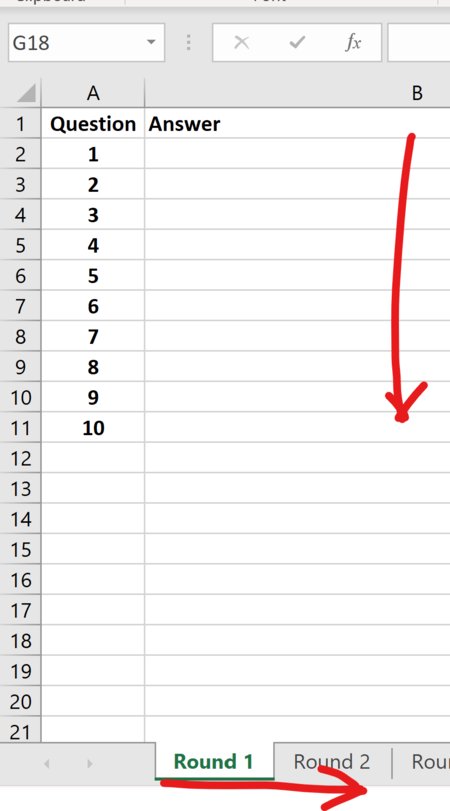
As you go fill in the answers in the answer sheet. There will be one minute provided for each question (unless noted otherwise), at which point your answer is final. Please don’t go back and change your answers later!
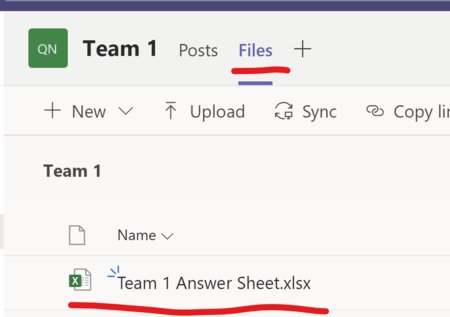
So you can switch between the answer sheet and Teams more easily, its best to open your teams answer sheet in Excel Online or Excel (if you have it), by clicking the “…” next to it and choosing “Open” -> “Open in…”
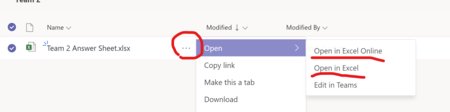
Once this is done, the scribe (whoever is entering answers) can switch between Teams and the answer sheet.
The answer sheet is “live” so your team mates (and us) can see changes as they are made, and more than one person can make changes so you can use this as a way to “chat” to members of your team that aren’t in your household.
You can also use your teams channel (ie your teams name) to chat amongst yourselves.
An alternative is to use something like WhatsApp, Facebook Messenger, FaceTime or a good old fashioned phone call on your mobile to keep in contact with your team mates, while still staying conencted to the Quiz via Teams.